Broker quick start
Step by step: sign-up, trial, tenant, CSV client import, extension, margin on a lot, deal from a lot, Track for the client, subscription.
This scenario takes a broker from first contact to a first deal. Every step shows its actual state in the current build: where a feature is still in progress, we say so and tell you what to do for now.
Steps and their state
| # | Step | State |
|---|---|---|
| 1 | Sign up on the ImportOS site and a 14-day trial | In development the site form only collects a request |
| 2 | Create a tenant (your company) | In development the service is ready, there is no sign-up screen yet |
| 3 | Sign in to Desk with an emailed link | Available |
| 4 | Import clients from CSV | In development the service is ready, the "Contacts" screen is not |
| 5 | Install the Margin extension | Available from the build folder; store: Waiting on the owner |
| 6 | Margin on a Copart/IAAI lot | Available |
| 7 | A deal from a lot | In development the "Add to Desk" button is still disabled |
| 8 | The client opens Track | Available |
| 9 | Subscription after the trial (Stripe) | In development |
Sign up and the 14-day trial
The ImportOS site has a /signup page. Right now it is a "notify me" form: it stores nothing, and says so honestly. Self-serve sign-up (Google or email, company name, country, cars per month) and a 14-day trial without a card are still in development.
In development: self-serve sign-up and billing
What is coming: sign-up with Google or email, a short questionnaire (company name, country, cars per month), tenant creation with demo data, a checklist of first steps, emails on days 1, 3, 7 and 12 of the trial, payment through Stripe Checkout and a Customer Portal to change the plan. The trial is 14 days, limits are soft (warnings, no blocking of your data).
What to do now: ask the platform operator to create a tenant. See step 2.
Create a tenant
A tenant is your company in ImportOS: its own clients, deals, brand and keys. Data of different tenants is isolated at the database level.
The tenant creation service already exists (createTenantWithOwner): name, country, language, currency, demo data marked "Demo" (removable with one call), and a first-run checklist with six steps: logo, client import, extension, Telegram, first deal, team invitation. There is no sign-up screen on top of it yet, so the tenant is created on the platform side.
Sign in to Desk
Desk has no passwords, only one-time links.
- Open the Desk address and enter the work email of the owner account.
- Press "Send link". The email arrives with a link valid for 15 minutes.
- Follow the link. If your email belongs to several companies, Desk shows a company picker, then a switcher in the sidebar.
Sign-in with Google and Telegram appears only when keys are configured on the server; otherwise the buttons are hidden with an explanation. There is no sign-up inside Desk: only existing users sign in. Broker clients do not enter Desk; they use a personal cabinet.
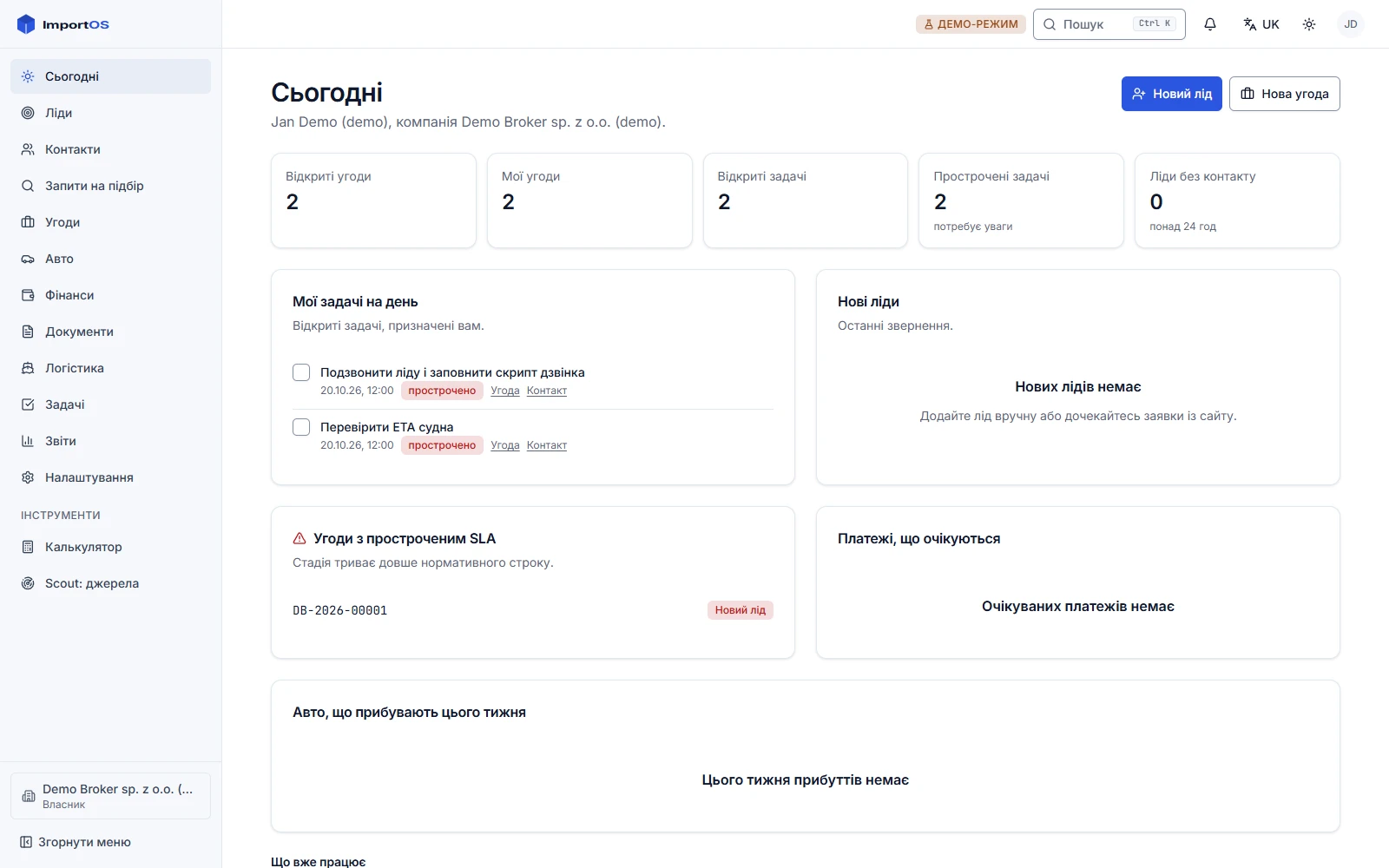
Details per section: Desk.
Import clients from CSV
Available Route in Desk: /contacts
The import service is ready. It accepts up to 5000 rows at a time and works in three stages:
- Column mapping. For each column of your file you choose a contact field or
ignore. - Preview before writing. For every row you see what will happen: create, update, skip or error, plus a summary and the list of unmapped columns.
- Write. An error in one row does not cancel the others.
Fields you can map to: fullName, firstName, lastName, phone, phone2, email, email2, telegram, viber, tags, notes, type, source, locale, consentMarketing, ownerEmail, utm_source, utm_medium, utm_campaign.
Duplicates are found by phone, email, Telegram and Viber, so re-importing does not multiply clients. Duplicate mode is update (update the existing contact) or skip. You can add tags to every imported contact, for example import-2026-10. The marketing consent column understands 1, true, yes, y, + (and the Ukrainian так).
A sample file:
Name,Phone,Email,Type,Tags
Petro Ivanenko,+380671234567,petro@example.com,client,vip
Iryna Koval,0501234567,,client,
Mapping for this file: Name → fullName, Phone → phone, Email → email, Type → type, Tags → tags.
Install the Margin extension
The extension runs in Chrome and Edge. There is no store listing yet (a developer account is needed), so for now you install it from the build folder as an unpacked extension.
- In Chrome open
chrome://extensions, turn on "Developer mode", press "Load unpacked" and chooseimportos/apps/margin-extension/.output/chrome-mv3. In Edge:edge://extensionsand.output/edge-mv3. - After installation the settings page opens. Without FX rates the panel calculates nothing: enter rates per 1 USD (EUR and UAH for Ukraine) with a date, your fee and the destination city.
Full guide: Margin extension.
Margin on a lot
- Sign in to Copart or IAAI with your own account and open a lot page.
- A Margin panel appears on the right: turnkey cost for the selected country and city, a breakdown of items with an explanation and formula for each.
- If the extension did not find the engine, fuel or bid on the page, enter them by hand. Without them there is no calculation: the extension does not guess.
- Enter the expected sale price. The panel shows the margin, a verdict ("good", "acceptable", "risky", "loss") and the maximum bid for your target margin.
- In result lists every lot has a colored margin badge.
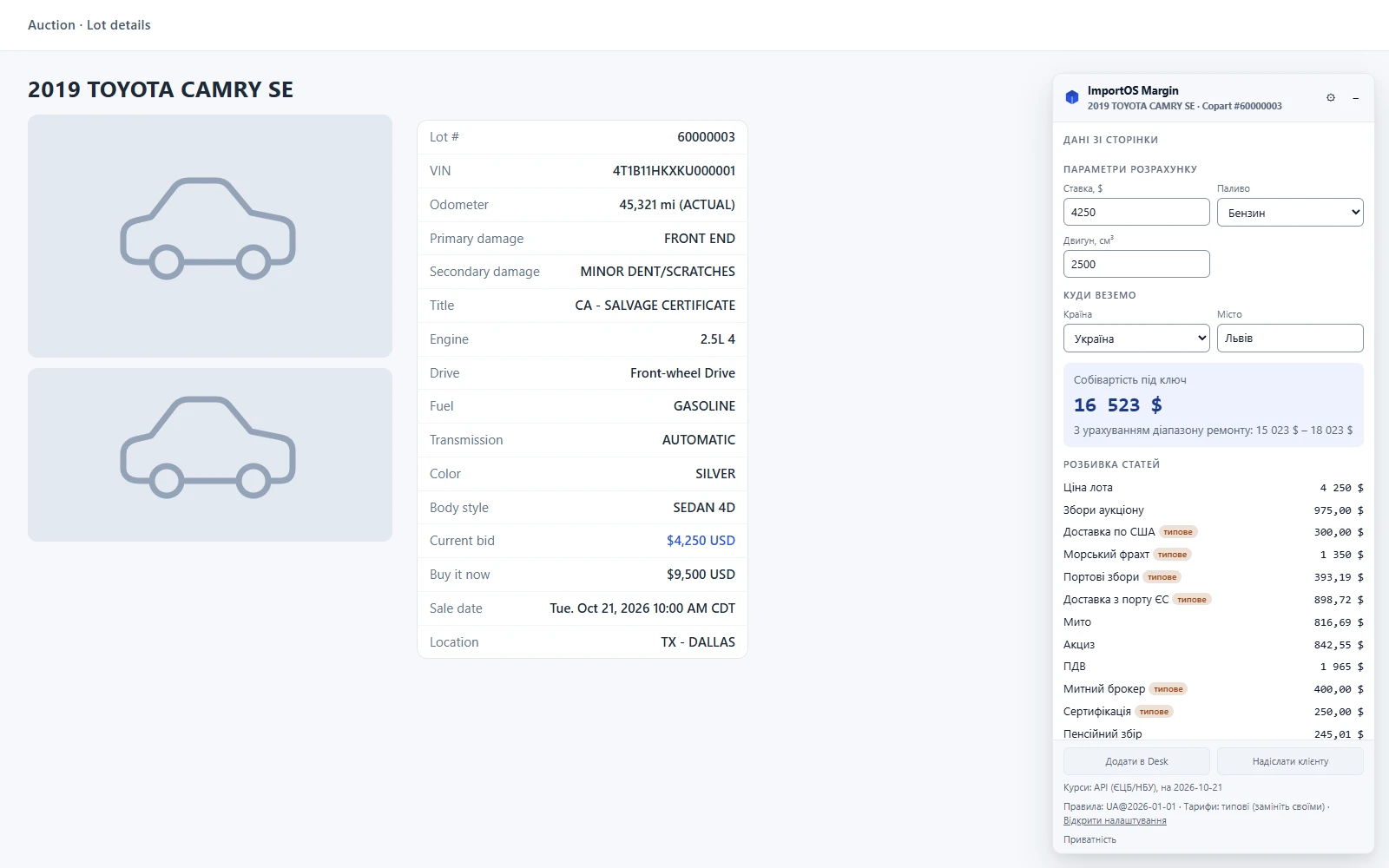
Selectors are not yet verified against live pages
Parsing of Copart and IAAI pages is written from memory of their markup and has not been checked on the live sites. If the panel says "page has changed", that is the expected reaction to a mismatch, not a failure. How it is fixed is described in selector verification.
A deal from a lot
In development: “Add to Desk” and the “Deals” screen
The "Add to Desk" and "Send to client" buttons in the extension panel are still disabled, and the "Deals" screen in Desk shows an empty state. The deal service is ready: creation, stage transitions with required-field checks, automatic tasks, notifications. What is coming: a lot from the extension becomes a vehicle and an offer for a client request in one click, and the deal opens on the kanban by stages.
What to do now: finish the calculation in the extension and keep the lot data. The platform operator creates the deal through the service while the Desk screens are being finished.
The client opens Track
The client gets a link like https://track.<your domain>/<token> or opens https://track.<your domain>/ and enters the deal number and VIN. They see the current stage, a timeline with dates, the route, public photos, documents (if you allowed them), the next payment and the manager's contact, all under your logo and colors. The page updates by itself without reloading.
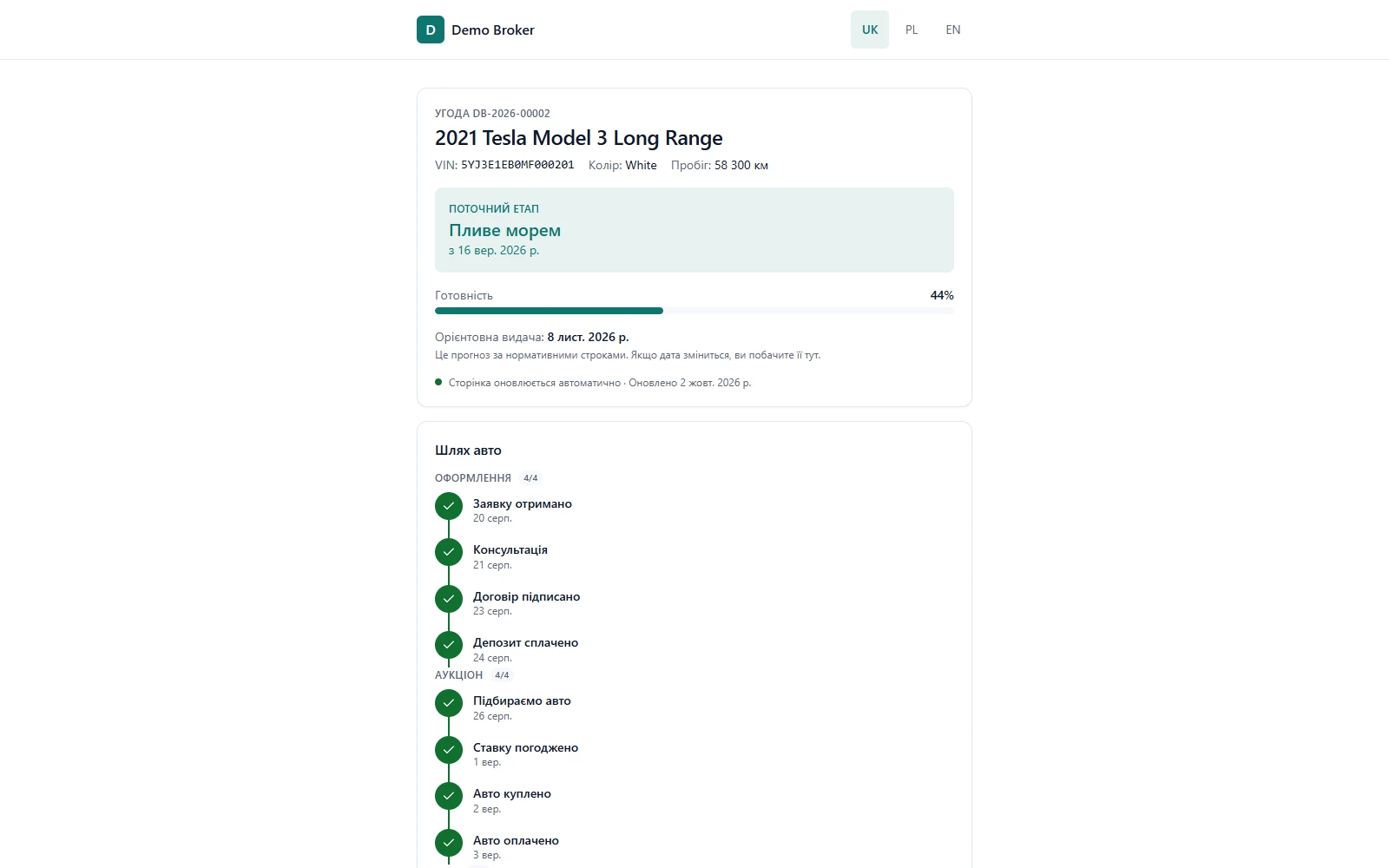
Brand and domain setup: Track.
Subscription after the trial
In development: Stripe subscription
Subscription payment, the Customer Portal and monthly car counting in billing are not wired yet. Plans and limits are already defined in configuration (see the table in For brokers), but the final prices are approved by the owner.
What next
- Every Desk screen and its state.
- Deal stages: what happens automatically on each.
- Document templates: how to change a contract or invoice in Word.